knacksnews
Make Gmail Searches Smarter: Optimizing Google Workspace for Speed
Google Workspace is used by millions of people every day, and Gmail has become the main tool that people use for both personal and business contact. But you're not the only one who has had trouble finding that one important email in a pile of others. The strong search tools in Gmail can be useful, but only if they are used correctly.
A few changes to how you organize and search in Google Workspace can make a big difference if your email searches take too long or your inbox is too full to get through quickly. This guide shows you how to make Gmail and the rest of the Google Workspace ecosystem work better so that you can look for emails faster and get more done.
1. Understand How Gmail Search Works
You should know how Gmail's search engine works before you try to improve anything. Because Gmail uses Google's own search technology, it stores all of your emails and lets you sort them by author, subject, date, keywords, and more.
Instead of reading through your email for hours on end, you can use Gmail's search tools to find exactly what you need. But for the best results, your email also needs to be clean and well-organized.
2. Use Advanced Gmail Search Operators
Getting good at Gmail's built-in search terms is one of the best ways to make searches go faster.
Here are some of the most useful ones:
- from: – Search by sender. Example: from:[email protected]
- to: – Search by recipient. Example: to:[email protected]
- subject: – Search by subject line. Example: subject:invoice
- has:attachment – Find emails with files attached.
- filename: – Search by the name of an attached file. Example: filename:report.pdf
- before: or after: – Search by date. Example: before:2023/01/01
- label: – Search within a specific label. Example: label:clients
Use these in combination to drill down with precision. For example:
from:[email protected] subject:proposal has:attachment after:2024/01/01
The more specific your search query, the faster and more accurate the results.
3. Apply Labels and Filters for Organized Email Management
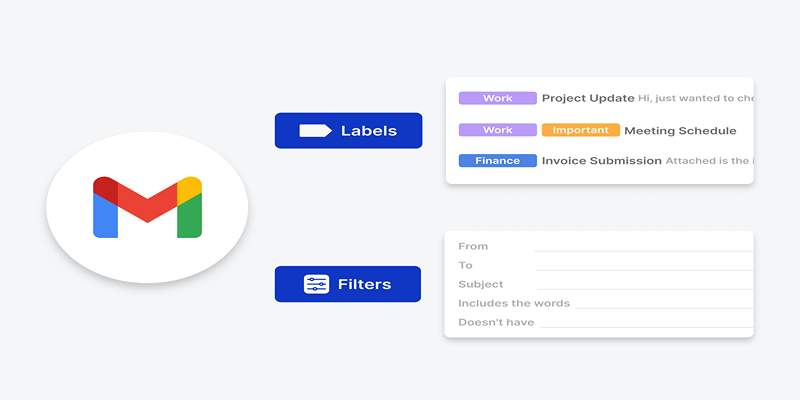
Labels in Gmail are like folders—but better. You can apply multiple labels to the same email, making them incredibly versatile for organizing your inbox.
To speed up future searches:
- Create labels for projects, teams, or client names.
- Use filters to automatically apply labels to incoming messages.
How to set up filters:
- Click the gear icon in Gmail > See all settings.
- Go to the Filters and Blocked Addresses tab.
- Click Create a new filter.
- Define filter rules (e.g., from a specific sender).
- Choose actions like "Apply label" or "Skip the inbox."
- Save the filter.
By tagging emails in advance, you'll cut down search time dramatically.
4. Archive Regularly to Declutter Your Inbox
Having thousands of emails in your primary inbox can slow things down and overwhelm your search experience. Gmail performs better when you keep your inbox organized and archive messages you no longer need immediate access to.
How to archive:
- Select emails you've already read or replied to.
- Click the Archive button (box with a downward arrow).
Archived emails don't disappear—they're just removed from the inbox and accessible through search or labels. This reduces visual clutter and improves Gmail's responsiveness.
5. Use Google Vault (for Business and Enterprise Users)
If you're a Google Workspace admin or using a business-tier account, Google Vault is a powerful tool for managing email retention, legal holds, and advanced search.
Vault lets you search across all user emails (if you're an admin), apply audit controls, and retrieve deleted messages that are no longer available in Gmail.
Vault is especially useful when dealing with:
- Company-wide search and compliance queries
- Restoring deleted emails
- Faster retrieval from archived mailboxes
For everyday users, Vault may not be necessary—but for admins managing large organizations, it's essential.
6. Enable Offline Mode for Faster Local Searches
If your internet connection is unstable or you need quick access to recent emails, enabling Gmail Offline Mode can help.
To enable Offline Mode:
- Go to Gmail Settings > See all settings > Offline tab.
- Check Enable offline mail.
- Choose how many days of emails to sync (up to 90).
- Save changes.
Offline Gmail stores a copy of recent emails on your device, so searches and reading are faster—even without an internet connection.
7. Reduce Unnecessary Extensions and Browser Load
Your browser environment can affect Gmail's speed—especially when it's loaded with memory-hogging extensions or tabs.
Tips to optimize Gmail performance:
- Disable or remove unnecessary Chrome extensions.
- Use fewer tabs or switch to Gmail in its own browser window.
- Avoid running high-memory apps while using Gmail.
Gmail works best on Google Chrome, but make sure the browser is updated and lightweight for the best search experience.
8. Clean Up with Google Workspace Tools
You can use tools like Google Takeout and Storage Management to archive or delete older emails.
Use Google Takeout to:
- Download old email archives to your local storage.
- Free up space in Gmail for faster performance.
Use Gmail's search and delete commands:
- Search: older_than:1y – shows emails older than a year.
- Then bulk-select and delete or archive.
By keeping Gmail lean, you reduce search index size, improving responsiveness.
9. Save Common Searches with Gmail Stars and Importance Markers
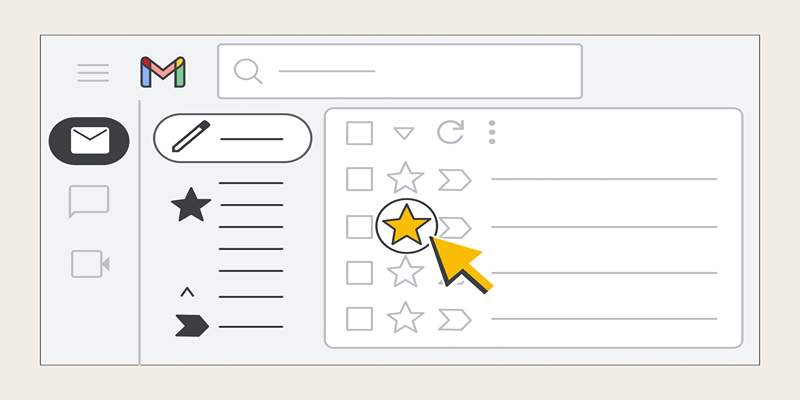
Starring and marking important emails helps Gmail prioritize which messages to highlight in search results.
Use custom stars:
- Go to Settings > General > Stars.
- Drag in different icons like yellow-star, red-star, etc.
- Use them for tagging emails by priority or type.
You can then search for specific stars with:
has:yellow-star or is:important
These saved visual cues make it easier to find emails without typing long queries.
10. Try Google Workspace Add-Ons for Search Power
If you regularly search through Gmail for attachments, contacts, or project updates, try using third-party add-ons or built-in integrations like:
- DocuSign for Gmail – search for signed files.
- Dropbox or Google Drive integrations – locate shared files faster.
- Gmail add-ons like "Sortd" or "Gmelius" – enhance Gmail UI and search filtering.
Many of these are available from the Google Workspace Marketplace and can add powerful functionality to your existing Gmail setup.
Conclusion
A cluttered inbox and inefficient search habits can slow you down and make work more stressful. But with just a few adjustments—like mastering Gmail's search operators, setting up smart labels and filters, and cleaning out your inbox—you can significantly improve your email search speed.
Google Workspace is packed with tools to make your workflow easier. When optimized correctly, Gmail becomes more than just an email platform—it becomes your personal productivity engine. The next time you're digging for a buried message, these tips will help you find it in seconds, not minutes.
On this page
1. Understand How Gmail Search Works 2. Use Advanced Gmail Search Operators 3. Apply Labels and Filters for Organized Email Management How to set up filters: 4. Archive Regularly to Declutter Your Inbox 5. Use Google Vault (for Business and Enterprise Users) 6. Enable Offline Mode for Faster Local Searches 7. Reduce Unnecessary Extensions and Browser Load 8. Clean Up with Google Workspace Tools 9. Save Common Searches with Gmail Stars and Importance Markers 10. Try Google Workspace Add-Ons for Search Power ConclusionRelated Articles

Calendly User Guide

Programmatic SEO: How Can You Increase Search Traffic Using No-Code Tools

Which Are The 6 Best Email Clients for Mac: A Comprehensive Comparison

What is IT Infrastructure Management and Why Does Your Business Need It

9 Powerful Chrome Extensions for Effortless Screenshots
Troubleshooting Video Editing Glitches: Tips and Fixes That Work

Simple Methods to Convert ISO Files to MP4 for Beginners
Top Keyword Research Tools

Troubleshooting GitHub Push Errors Related to Authentication

Perplexity vs. ChatGPT

Top Website Annotation Tools to Streamline Your Workflow